
Smaller files, same photos
Compression is tuned to reduce size while keeping detail.


JPEG Jackal recompresses photos to take less disk space without visible loss. Drop a file or a whole folder and keep the result only when it's smaller. Start with the free Lite version; Standard and Pro add more control.
macOS 12.0 or later
Lite replaces original files, or moves them to the Trash if you choose. Standard and Pro can save copies to another folder. Keep a backup before using Lite.
JPEG Jackal makes photos smaller before you send or upload them, and turns iPhone HEIC photos into JPEGs that open everywhere. Share photos to it from Photos, or use it in Shortcuts, and get compressed copies back; your originals stay as they are. Lite is free, with no limits or watermarks; Pro adds more control.
iOS 17.0 or later · iPadOS 17.0 or later
Saves compressed copies. Your library originals stay unchanged. Pro is a one-time purchase.

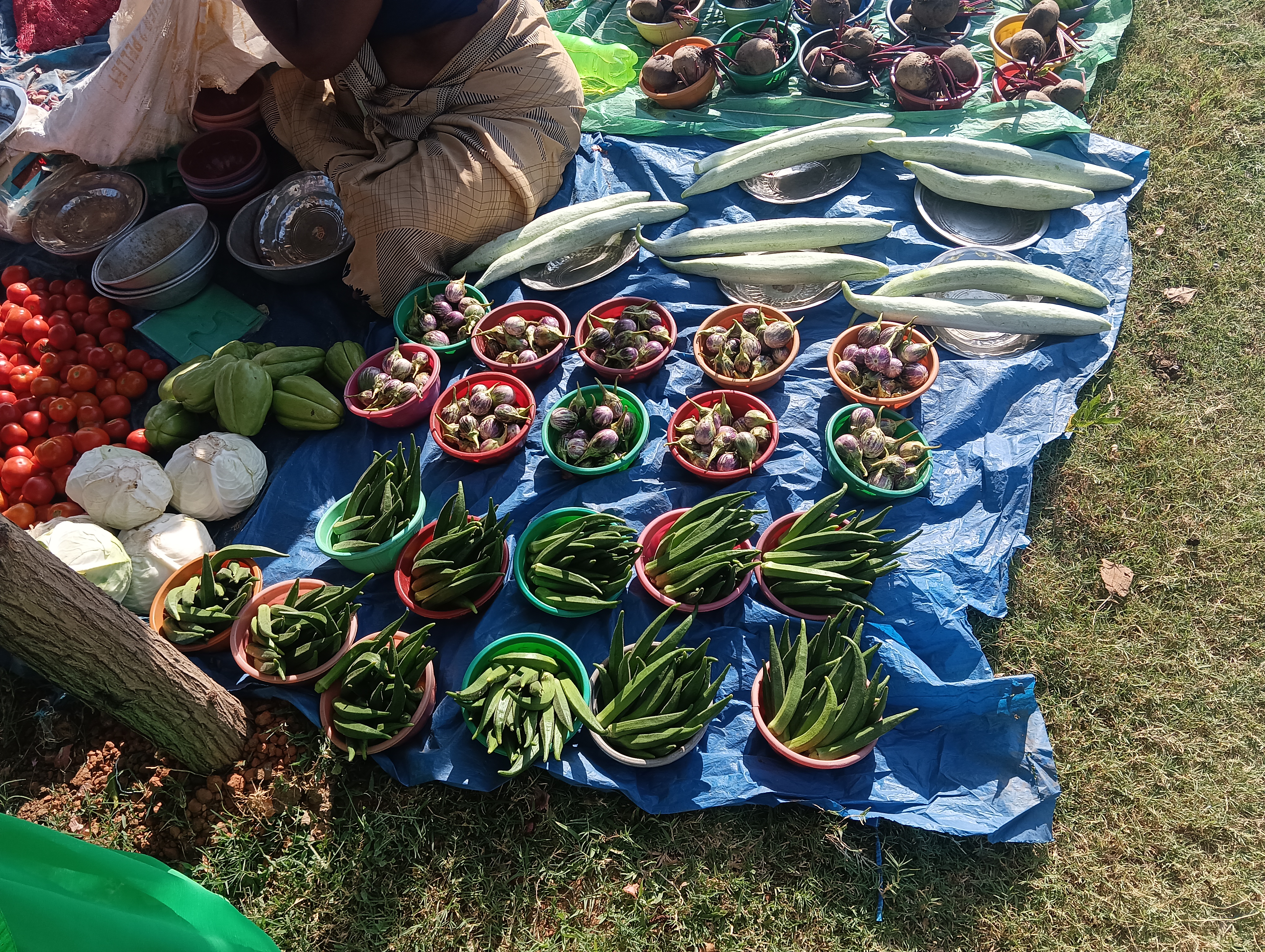
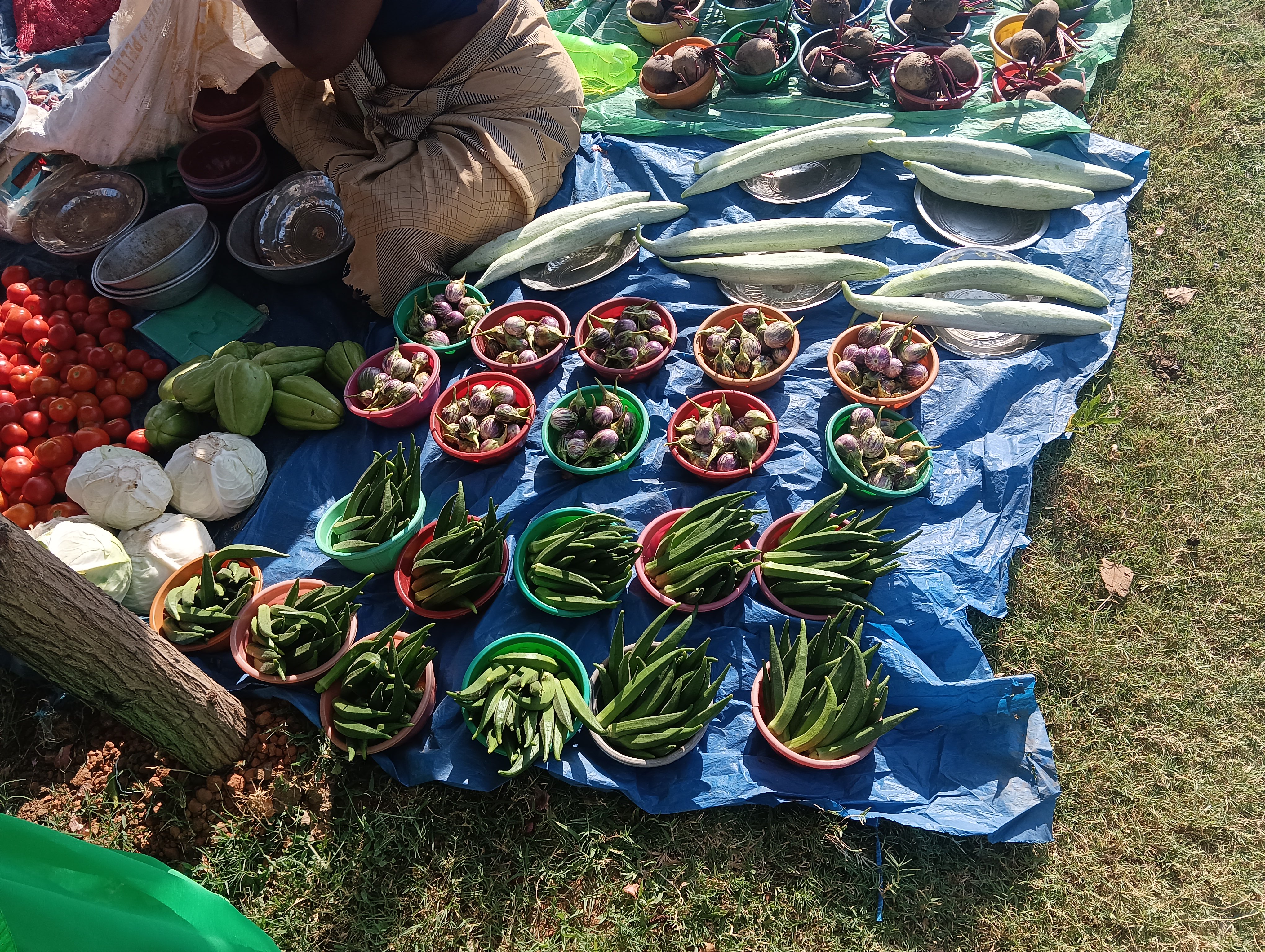
A real photo, compressed in JPEG Jackal for Mac. Both files keep all 4080 × 3072 pixels.
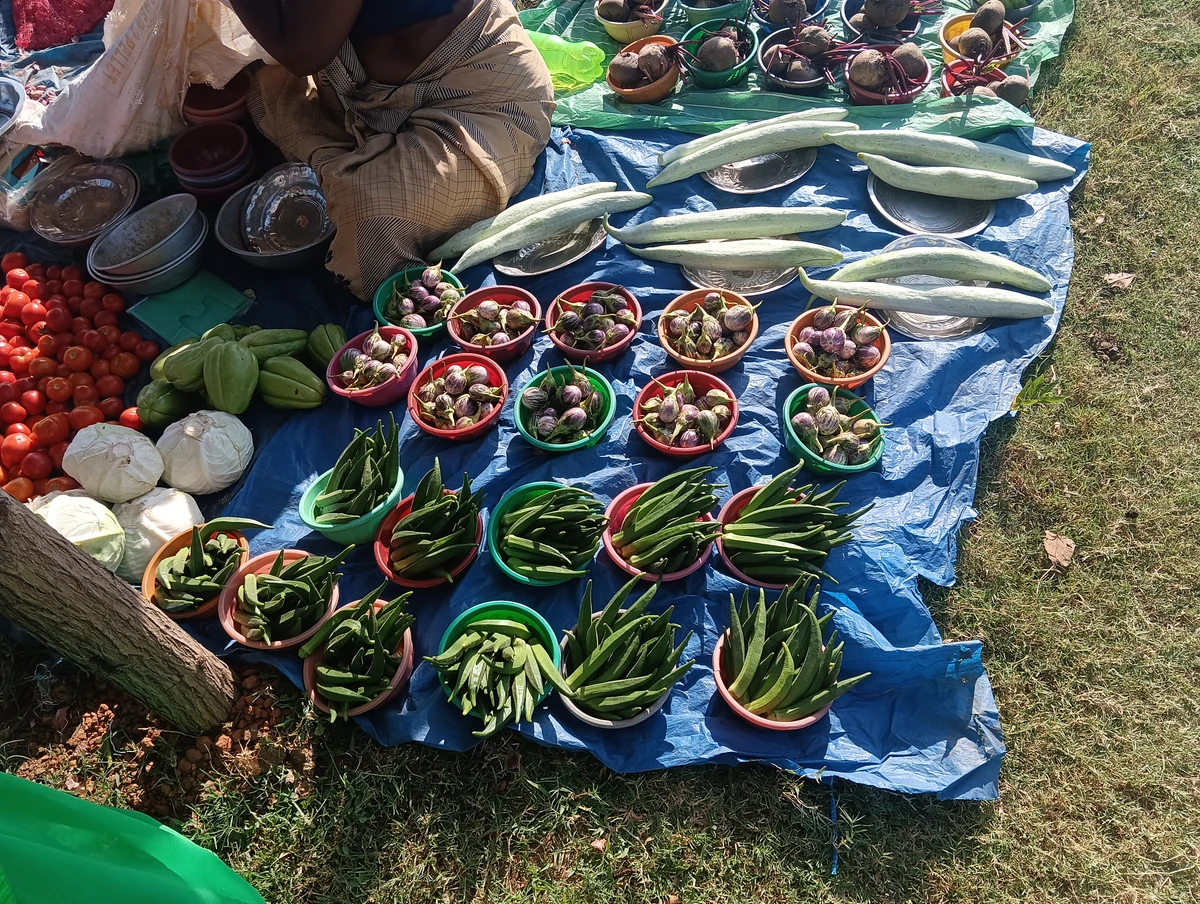
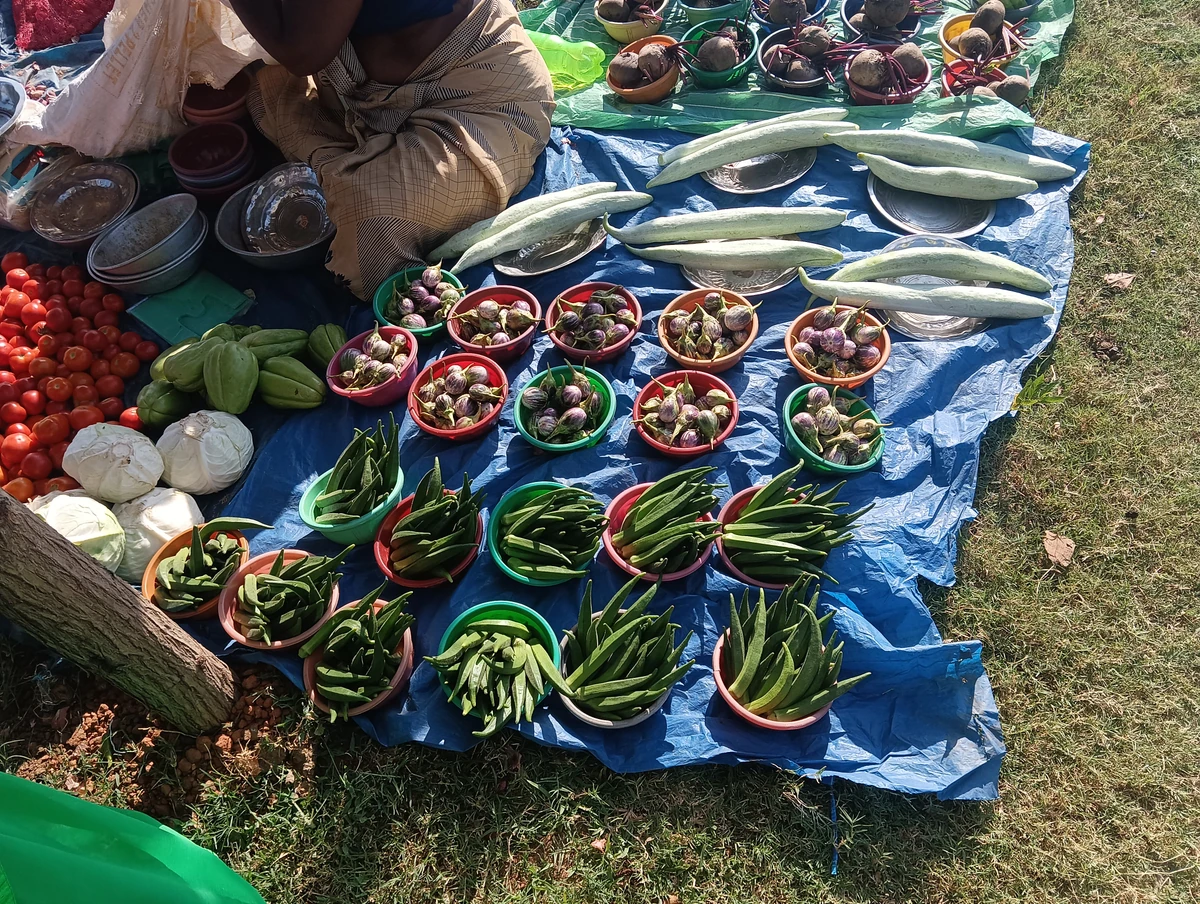
Hover over the photo to inspect it at 100%. Move the pointer to explore; move away to see the whole photo.
Matching 600 × 400 pixel crops, with no resizing. Open either crop to see it at its original pixel size.
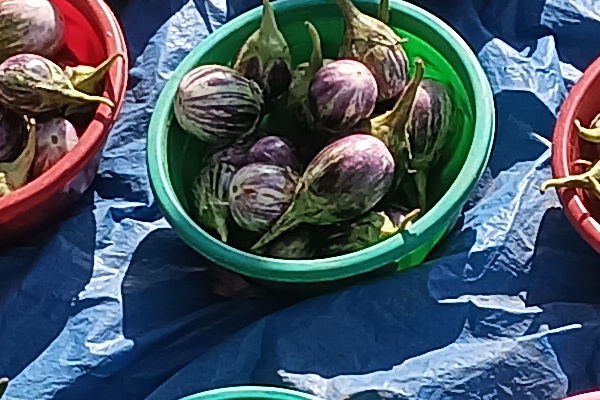
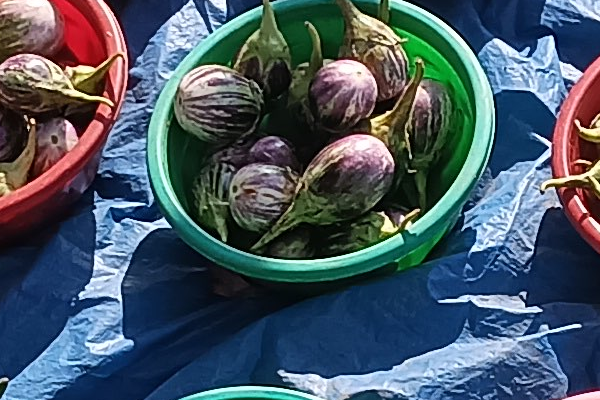
JPEG Jackal 3.2 for Mac · Quality 60%, original resolution, metadata retained. Savings vary with the photo and settings.
Download original · 6.63 MBDownload compressed · 3.73 MB
Photo: RonRubs / Wikimedia Commons, CC0.
Mac ·
Compression is tuned to reduce size while keeping detail.
Drag a single photo or a folder of thousands onto the window or the Dock icon. Photos dragged from Photos or Mail work too.

Ask for a maximum size and JPEG Jackal picks the highest quality that fits.


iPhone & iPad ·
Select photos in Photos, tap Share and choose JPEG Jackal. Or open the app and pick up to 200 photos from Photos or Files.

You get compressed copies: save them to Photos or Files, or share them right away.
Set a limit, like 500 KB for an upload form, and JPEG Jackal picks the highest quality that fits.


Mac ·
Compare the features in each version.
| LiteUpgrade to Standard or Pro inside the app. | StandardCustom settings, PNG output and output folders. | ProEverything, including HEIC and RAW photos, HEIC output and Compare. | |
|---|---|---|---|
| Custom settings | Not included | Included | Included |
| Keep the originals | Not included | Included | Included |
| Subfolders too | Not included | Included | Included |
| Drop on the menu bar | Not included | Included | Included |
| Save as PNG | Not included | Included | Included |
| HEIC and WebP to JPEG | Not included | Not included | Included |
| Camera RAW photos | Not included | Not included | Included |
| Save as HEIC | Not included | Not included | Included |
| Compare before and after | Not included | Not included | Included |
| Target file size | Not included | Not included | Included |
| Remove metadata | Not included | Not included | Included |
| iPhone and iPad included | Not included | Not included | Included |
| Price | FreeApp StoreGet | $1.99App StoreGet | $4.99App StoreGet |
Standard and Pro are also available as an in-app upgrade from Lite.
iPhone & iPad ·
Compare the features in each version.
| LiteUpgrade to Pro inside the app. | ProYour own settings, a file size limit, HEIC and PNG output and metadata removal. | |
|---|---|---|
| Custom settings | Not included | Included |
| Target file size | Not included | Included |
| Save as HEIC or PNG | Not included | Included |
| Camera RAW photos | Not included | Included |
| Remove metadata | Not included | Included |
| Mac included | Not included | Included |
| Price | FreeApp StoreGet | $4.99App StoreGet |
Pro is also available as an in-app upgrade from Lite. Either way, one purchase covers iPhone, iPad and Mac.
JPEG Jackal doesn't collect any data. Its App Store privacy label reads “Data Not Collected”.
Standard adds custom quality and size settings, saving to another folder, subfolders, PNG output and drops on the menu bar icon. Pro has everything in Standard plus HEIC, WebP and camera RAW photos, HEIC output, before-and-after comparison, a target file size and metadata removal.
You get the same features either way. An in-app upgrade unlocks Lite itself, so you can try the free version first; if you upgrade to Standard, you can move on to Pro there later. Standard and Pro are also sold as separate apps if you'd rather buy outright. These are separate purchases: an upgrade in Lite doesn't unlock the separate apps, and buying a separate app doesn't unlock Lite.
In Lite, a compressed photo replaces the original, or moves it to the Trash if you turn that on. Standard and Pro can save copies to another folder instead, and Pro lets you compare before and after first.
They are left as they are.
Write to [email protected]. Include your macOS version and what you were doing when the problem appeared.
No. Pro is one purchase for iPhone, iPad and Mac. If you bought JPEG Jackal Pro, install it on your other devices with the same Apple Account. If you upgraded to Pro inside Lite, Lite is unlocked on all of them.
You get the same features either way. The upgrade unlocks Lite itself, so you can try the free version first. These are separate purchases: the upgrade in Lite doesn't unlock the Pro app, and buying the Pro app doesn't unlock Lite.
Standard is Mac only; on iPhone and iPad there are Lite and Pro. If you unlocked Standard inside Lite on your Mac, Lite on iPhone and iPad offers Pro at a lower upgrade price.
No. JPEG Jackal makes compressed copies. Save to Photos adds them to your library next to the originals; Save to Files and Share leave the library as it is.
Yes. Add the Compress Photos action to a shortcut, or ask Siri to compress photos with JPEG Jackal. Lite uses the presets and JPEG output; Custom settings, HEIC and PNG, metadata removal and RAW files need Pro. A big batch continues in the app. If a photo can't be compressed, the run fails, so the next step never gets a partial set.
Scroll the row of app icons to the end and tap More, then choose JPEG Jackal Lite or JPEG Jackal PRO. You can also open the app and pick photos there.
Only to save: Save to Photos needs permission to add photos to your library. JPEG Jackal can't see the rest of your library; it gets only the photos you choose or share.
A JPEG that can't get noticeably smaller comes back as it is, marked “Already optimized”, so it's still shared or saved with the rest.
Write to [email protected]. Include your iOS or iPadOS version and what you were doing when the problem appeared.
Shrinks JPEG files and keeps the photos sharp.

Lite · Free